Manage registrations
Review goalie registrations, update registration status, and keep rosters accurate in the GoalieBook coach admin.
Registrations connect a goalie profile, family contact details, program details, and payment status. Use the admin roster to confirm who is registered, who still owes payment, and which spots are available.
Review the roster
Open a program and review its registrations before each clinic. Check:
- Goalie name and level.
- Parent or family contact details.
- Registration status.
- Payment status.
- Notes or details collected during registration.
Registration statuses
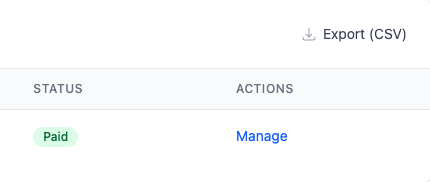
Registration status tells you whether a goalie has a confirmed spot, has been canceled, or is waiting for another action. Payment status is separate, so a registration may exist before all money has been collected.
Use status filters when you need a quick view of confirmed goalies, unpaid registrations, canceled registrations, or waitlist-related work.
Contact the roster
Use Copy Emails above the roster to copy the contact name and email address for every registration currently shown. Paste the copied recipients into your email client's recipient field. Apply a status filter first when you only want to contact a specific group, such as paid or waitlisted registrations.
Use Export (CSV) when you need the full roster details in a spreadsheet.
Family accounts and sign-in
A family's GoalieBook account is created during their first registration, so they don't sign up separately or choose a password. Their saved goalies, registrations and payment status live in that account.
When a family registers again with the same email, GoalieBook asks them to sign in so the new registration joins their account. Whatever they've already typed into the form is kept. They can:
- Get a 6-digit sign-in code by email. No password needed, and the code works for 20 minutes.
- Sign in with Google, if their email is a Google account.
- Use a password, if they set one after their first registration.
If a family says the code didn't arrive, ask them to check their spam or junk folder and to make sure they're using the email from their first registration. If a code is rejected, they can choose Send a new code. Only the newest code works, so they should use the code in the most recent email.
Editing registration details
When a family asks for a correction, update the registration from the admin area so exports and reports stay accurate. Avoid tracking changes only in email threads or spreadsheets.
Releasing or canceling a spot
If a goalie can no longer attend, use the admin action that matches the situation:
- Cancel when the registration should remain in history but no longer count as attending.
- Release a spot when capacity should become available for another goalie.
- Promote from a waitlist only when the family should now have an active spot.