Manage programs
Create, publish, update, and organize goalie clinics in the GoalieBook coach admin.
Programs are the public registration pages families use to sign up for your clinics. Each program controls the name, description, price, capacity, dates, location, registration deadline, and payment options shown to families.
What to set before publishing
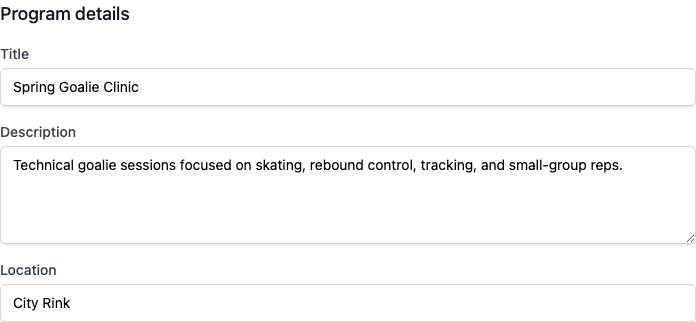
Before sharing a program link, review these fields:
- Title: Use a clear name families will recognize, such as "Winter Goalie Clinic - U11/U13".
- Description: Explain who the program is for, what goalies will work on, and anything families need to bring.
- Dates: Keep start and end dates accurate because they appear on public pages and in registration details.
- Location: Include the rink or training location families need for planning.
- Price and deposit: Confirm the full price and any deposit rules before taking registrations.
- Capacity: Set the real number of available goalie spots so GoalieBook can block registrations when the program is full.
- Jersey sizes and fees: Decide whether to collect jersey sizes, and whether families can buy a jersey.
Limit registration by age division
When age division limits are available for your organization, select Enable age division limits and choose the youngest and oldest divisions that may register. Labels follow your organization's billing country. Canadian organizations see Hockey Canada labels such as U11–U18. United States organizations see the equivalent USA Hockey labels, such as 10U–16U/18U.
GoalieBook determines each goalie's division from their saved birth year. Age divisions currently change on June 1 for every organization: programs beginning before June 1 use the season that started the previous year, while programs beginning June 1 or later use the new season. Families cannot select a different division during registration.
The public program page displays the eligible range. A goalie outside that range cannot complete registration. Age division limits do not change the program's overall capacity or waitlist behavior.
Collect jersey sizes and fees
Each program decides whether families are asked for a jersey size, and whether a jersey can be bought at registration.
- Off: Turn off Collect jersey size and families are never asked.
- Sizes only: Turn it on and leave Jersey fee blank. Every goalie must choose a size to register, and nothing is charged.
- Sizes with a fee: Turn it on and enter a jersey fee. Families see an "Add a team jersey" checkbox with the price. They only need to choose a size if they add one, and the fee is added to their total.
The jersey fee is optional for the family, so it is not part of the price shown on your program page. It appears as its own line on the order summary, the confirmation email, the registration receipt, and your roster export, so you can see who bought one.
If the program uses a deposit, the jersey fee is collected with the deposit rather than the balance, so you have the money before you place a jersey order.
Families are always asked to confirm the size for the goalie they select, even for a goalie already saved in their account. The size is saved to that goalie's profile for next time, and the size recorded on a completed registration does not change if the family later updates the profile.
Changing a program's jersey fee only affects new registrations. Registrations already taken keep the price they were charged.
Published, scheduled, and archived programs
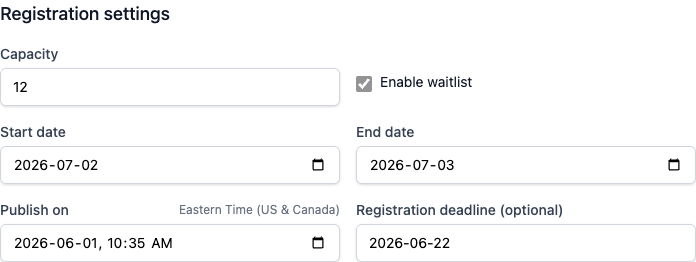
Programs use a Publish on date and time instead of an active/inactive switch.
- Published: The Publish on time has arrived, so the public program page is available.
- Scheduled: The Publish on time is in the future, so the program is set up but not public yet.
- Archived: The program has no Publish on time. Archived programs are hidden from public registration and preserved for history.
You must also confirm your account email before a published program becomes public. While your email is unconfirmed, use View Public Page in the program admin to open a private preview. A banner on the preview reminds you that only you can see it. Once you confirm your email, the published page becomes available to families automatically.
To stop new public registrations for an existing program, review the registration deadline first. If the program has registrations and should be removed from the current program list, use the delete/archive action from the admin area; GoalieBook archives the program and preserves existing registrations.
Programs without registrations can be deleted instead of archived.
Registration deadline and capacity
GoalieBook uses the deadline and capacity to decide whether families can register. If a clinic fills up, the public page should stop accepting new registrations. If you reopen spots, confirm that capacity, deadline, and program status all match the intended registration window.