Organization settings
Set up coach organization details, public profile content, payment settings, tax settings, and registration preferences.
Organization settings control how your coaching business appears publicly and how registration works behind the scenes. Review these settings before publishing programs or collecting payments.
Public profile details
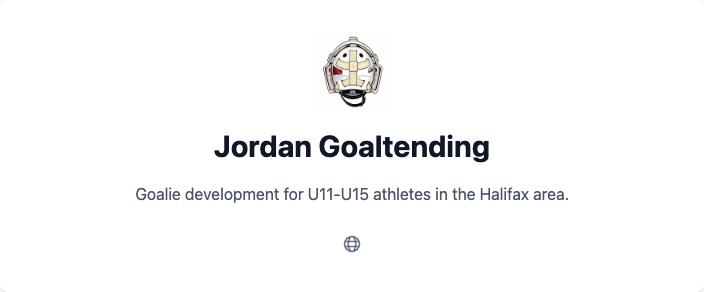
Your public coach page can show your organization name, logo, bio, website, and social links. Use this area to explain your coaching background, training focus, and communities served.
Good public profile content helps families understand who is running the program and helps search engines understand where and what you coach.
Registration settings
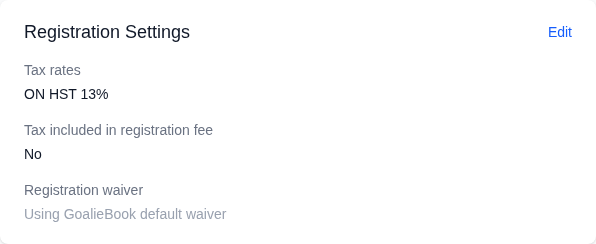
Registration settings control what families need to provide when signing up. Keep these requirements focused on information you actually use for roster planning, safety, or communication.
Stripe Connect
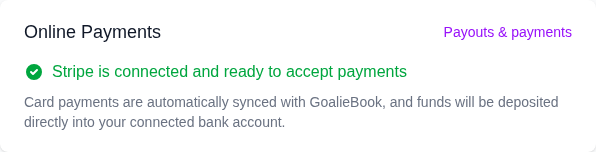
Stripe Connect lets you accept card payments for registrations. Complete Stripe onboarding before relying on card payments for a live program.
When you connect, GoalieBook sets up a Stripe account for your school. Stripe verifies you with a text message to your phone and collects your personal details and bank account during onboarding; GoalieBook fills in your business details from your organization. There's no separate Stripe Dashboard or Stripe password to manage. Your school is the merchant of record: Stripe charges its processing fees to your account, and your school handles refunds and disputes with families. GoalieBook tracks payments and sends refunds for you, and payouts go to your bank account weekly.
Open Payouts & payments on the Online Payments card to see your balance and upcoming and past payouts, add funds if a refund or dispute leaves your balance negative, change your bank account, find tax documents, look up card payments, respond to a dispute, and update your Stripe details. If Stripe needs something from you, such as a document to verify your identity, a notice appears on your organization page and on Payouts & payments, and Stripe emails you a link to it. Respond before Stripe's deadline so card payments and payouts keep running.
If Stripe is not fully connected, use manual payment options or finish onboarding before publishing a program that expects card payment.
If the Online Payments card says Stripe setup needs support, or that Stripe was disconnected, card payments are off until GoalieBook support helps. Your past payments and payout history stay in Stripe.
If Stripe later needs more information, card payments pause and the Online Payments card says so. Use Continue Stripe setup to finish the outstanding requirements. Schools that connected Stripe before September 2026 also have a Stripe Dashboard link to review their account, payouts and past payments.
E-transfer settings
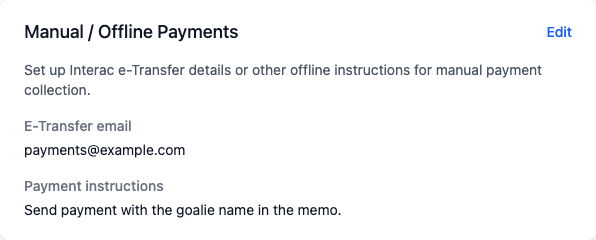
E-transfer settings tell families how to pay outside Stripe. Keep instructions specific enough that families know the recipient, memo, and any timing expectations.
Tax settings
Tax settings affect how prices and payment reporting are handled. Confirm your tax setup before collecting payments, especially if your province, organization status, or program pricing changes.